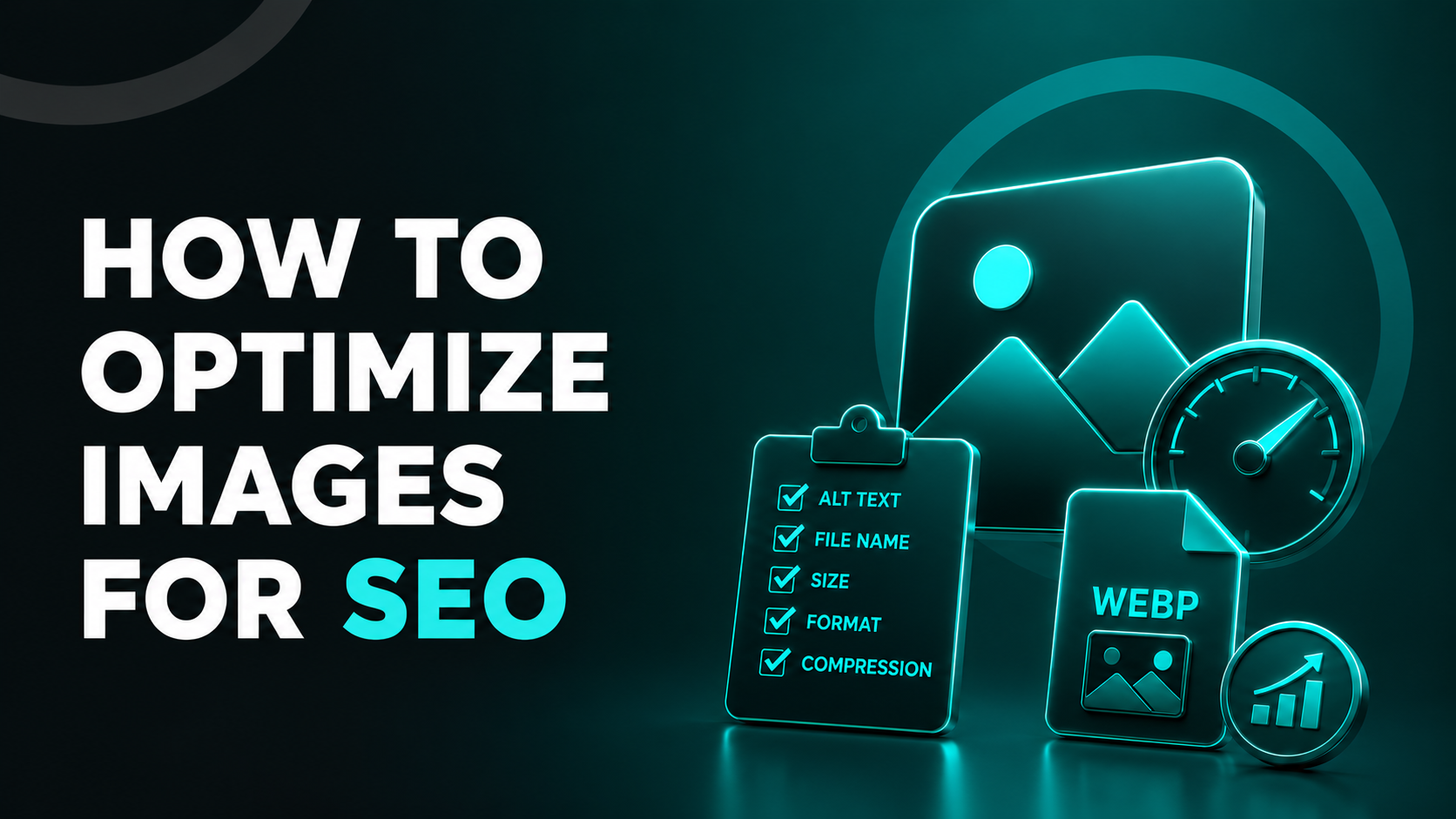
How to Optimize Images for SEO
Images on your site aren't just decoration — they're an extra source of traffic. They show up in Google search results: in result thumbnails, rich snippets, Knowledge Panels, and news blocks. In other search engines they appear in the dedicated image tab and can bring in visitors too. That's why it makes sense to optimize images as systematically as you do text. Here's a step-by-step guide to doing it right.
What image optimization actually involves
In practice, working with images breaks down into a few sequential tasks: checking rights and uniqueness, choosing the right format and file size, writing alt text and captions, cleaning up metadata, and adding the images to your sitemap. Let's go through each step.
Use unique images and sort out the rights
Images follow the same logic as text: search engines reward unique content. If your page uses the same stock illustrations as dozens of other sites, search will group all the copies into a single result. And the version that makes it into the results will be the one on the most authoritative domain — almost certainly not yours.
So it's better to publish your own material. Original photos, custom illustrations, and infographics are far more likely to land in image search and bring in traffic.
You can check an image's uniqueness with reverse-image-search services such as TinEye. If you find dozens of matches, swap the image for a less widely used one or rework it: crop it, change the background, or shift the color palette.
If you don't have an in-house photographer or designer, you can buy images from stock sites like Freepik, Pexels, Pixabay, Mockupfree, and similar platforms. After purchasing, keep proof of your rights in case of any claims: the receipt or certificate, the image ID, and the license text.
One important point: don't use material marked "Editorial use only" in commercial projects. That's a copyright violation and a real risk of legal trouble. For the same reason, don't grab the first images you find in search — it can land you in legal disputes.
Google Images lets you filter results by license type. In the search settings there's a "Usage rights" option where you can choose a license — for example, Creative Commons, which permits commercial use. It's a convenient way to immediately rule out anything you're not allowed to use.
Choose the format and optimize size and weight
The faster a page loads, the better your chances of ranking well and keeping the visitor. At the image level, the key metric is LCP (Largest Contentful Paint) — the time it takes to render the largest visible element on the page, usually a big cover image or the main product photo. A good LCP is under 2.5 seconds.
You can check the value in tools like PageSpeed Insights. If the test shows more than 2.5 seconds, the image is loading slowly and dragging down the whole page's score.
You can optimize an image along three parameters: format, dimensions in pixels, and file weight.
Format. By default, go with AVIF or WebP — they barely lose any quality, support transparency, and weigh less than the alternatives. PNG is a good fit for images with a transparent background and sharp edges: interface screenshots, diagrams, and pictograms. Logos and icons are best published as SVG.
Older browsers (for example, Safari before version 14, or Internet Explorer) don't support AVIF and WebP. For them, include a JPEG fallback in your markup. Here's how it looks:
<picture>
<!-- AVIF, then WebP, then JPEG as a fallback -->
<source srcset="/img/hero.avif" type="image/avif">
<source srcset="/img/hero.webp" type="image/webp">
<img src="/img/hero.jpg" alt="Image description">
</picture>
Dimensions. Export the image to the actual width of its container — the width it's actually displayed at in your CMS. To find it, open your browser's developer tools, hover over the image, and look at the Rendered size value — for example, 800×533. Here, 800 is the actual container width, and that's what you should prepare the file for.
Don't load an oversized image into an 800-pixel container: you'll only add unnecessary weight and worsen LCP. The image width should match the container width.
For high-density displays (Retina, 2×), you need a larger version, otherwise the image will look blurry. If the base width is 800 pixels, add a 1600-pixel variant. In markup for a fixed width, that might look like this:
<picture>
<!-- AVIF, then WebP, then JPEG as a fallback -->
<source type="image/avif" srcset="/img/hero.avif 1x, /img/hero@2x.avif 2x">
<source type="image/webp" srcset="/img/hero.webp 1x, /img/hero@2x.webp 2x">
<img
src="/img/hero.jpg"
alt="Image description"
width="800" height="533">
</picture>
Weight. Compress the file to the point where artifacts aren't yet noticeable. As a rough guide: a cover image usually needs 150–250 KB, illustrations 80–150 KB, and thumbnails 30–80 KB.
For compression, services like Squoosh, TinyPNG/TinyJPG, Optimizilla, and Compressor.io work well. For WordPress sites, there are optimizer plugins that compress images right in the admin panel.
If quality starts to visibly fall apart at a given compression level, bump the setting up a notch — usually about +10% to the actual pixel width. For example, if the current width is 800 pixels, the next step is 880.
Write clear attributes, captions, and file names
Search engines still can't fully "see" the contents of an image and rely heavily on textual cues. So correctly filled-in attributes and captions are the main condition for getting an image into relevant search results.
The core elements here are the alt text, the caption beneath the image, and the file name. You can check whether they're filled in using technical-audit crawlers like Screaming Frog SEO Spider.
The alt attribute. This is the image description for search robots and for users with visual impairments. It should briefly explain what's shown and how it relates to the page's topic. For example:
<img src="coffee-machine.jpg" alt="Coffee machine filter diagram">
Don't leave alt empty — otherwise the search engine simply won't understand what the image is about. You can add one or two keywords related to the page topic, but without keyword stuffing.
| Wrong | Right |
|---|---|
| alt="buy coffee machine cheap delivery" | alt="Coffee machine: diagram of the filter inside the tank" |
| Cramming in commercial queries leads to penalties | To the point, with the key detail — the filter |
If a page has several similar images, give them different alt text — for example, "front view" and "back view." Otherwise the search engine will treat them as duplicates and show only one in the results.
The title attribute. This appears when you hover over the image. It has almost no effect on ranking, so adding it is optional. But it can be handy for giving the reader extra context:
title="Coffee machine filter, close-up"
If you do use title, make sure it differs from alt — don't repeat the text word for word.
The caption. This is the text directly beneath the image on the page. It's usually not an HTML attribute, just visually formatted text. Even so, search bots often analyze captions to judge whether the image matches the page topic.
Write a short description or explanation under the image. Where it fits, include the key query or a close synonym. Example caption: "Diagram of a coffee machine filter: the main parts and their layout."
File names and URLs. The image's name ends up in the URL and is factored into indexing. So give the file a clear, Latin-character name before you upload it.
Don't leave names like IMG_001.jpg or nbvfh3478.png — a bot can't make sense of those. And don't clutter the name with stop-words like image or picture.
The ideal is 3–6 words separated by hyphens, with no special characters or spaces. Good examples: coffee-machine-filter-diagram.webp, red-sneakers-nike.jpg. And avoid blatant stuffing — don't name a file buy-coffee-machine-cheap-seo.webp.
Once the page is published, don't change the file URL. If you rename or move the image, the search engine hits a broken link (404), the image drops out of the results, and it loses the positions it had built up.
Clean up EXIF data
EXIF is the technical data stored inside an image: camera model, capture date, geotags, thumbnails, edit history. It's useful for photographers but usually redundant for the web — and it inflates the file size. So before uploading an image, it's worth stripping out everything unnecessary.
What to remove:
- Geolocation and personal data. Cameras and smartphones often record the GPS coordinates of a shot. Unless you're running, say, a travel blog tied to specific locations, there's no reason to keep geotags on the site.
- Thumbnails, previews, edit history. Sometimes a file stores embedded thumbnails or revision data (in XMP/IPTC metadata). These add weight and are best deleted too.
- Keep the color profile and orientation. This is the minimum worth preserving: the embedded color profile (ICC, e.g. sRGB) and the orientation flag. They're needed for accurate colors and correct rotation, and they weigh just a couple of kilobytes.
- Authorship and rights. If you're the author and want to mark it, you can keep your name or license information in the IPTC metadata.
If you want the Licensable badge to appear in Google Images, add a link to the license terms in the IPTC fields (Web Statement of Rights, Licensor) or specify the license in Schema.org markup.
Many compression services clean up EXIF — Squoosh and TinyPNG, for instance, strip metadata by default. For full control, use utilities like ExifTool, a command-line program that can delete and edit any tags. There are also desktop apps for batch metadata cleanup across various operating systems.
Create an image sitemap
Once your images are optimized, you need to make sure they get indexed. If you have dozens or hundreds of images — especially when they're loaded by complex scripts — search bots can have trouble finding them. The solution is a sitemap that tells search engines where everything is.
A sitemap is an XML file listing the important pages of a site. You can also add links to each page's key images to it. The principle is this: for every page, you list its main images — the cover, gallery photos, significant illustrations — using <image:image> blocks with absolute links, meaning the full address including protocol and domain.
| Wrong link | Right link |
|---|---|
| /images/hero.avif | https://example.com/images/hero.avif |
In the sitemap file it looks like this:
<url>
<loc>https://example.com/page1</loc>
<image:image>
<image:loc>https://example.com/images/pic1.jpg</image:loc>
</image:image>
<image:image>
<image:loc>https://example.com/images/pic2.jpg</image:loc>
</image:image>
</url>
The finished sitemap then needs to be submitted in your webmaster tools — in Google Search Console and the equivalent panels for other search engines.
In short: an image optimization checklist
| Step | What to do | Where to check / how to do it |
|---|---|---|
| Uniqueness and rights | Use unique, original photos and illustrations. Buy stock images outright. Don't put "Editorial use only" material on commercial pages. | Reverse-image-search services (TinEye), Google Images |
| Format | AVIF/WebP by default. PNG for transparent backgrounds, screenshots, and diagrams. SVG for logos and icons. Add a JPEG fallback for older browsers. | Squoosh, online converters |
| Dimensions (in pixels) | Export to the Rendered size in your CMS. Add a version for Retina (2×) displays. | Developer tools → Rendered size |
| Weight (compression) | Compress to the point where quality is still fine and there are no visible artifacts yet. | Squoosh, TinyPNG/TinyJPG, Optimizilla, Compressor.io |
| Attributes and captions | Give each image alt text of 5–12 words. Add a short caption under the photo. Name the file in Latin characters with hyphens. | Screaming Frog SEO Spider |
| EXIF data | Remove GPS, thumbnails, and edit history. Keep sRGB and orientation. | Squoosh, ExifTool |
| mage sitemap | In sitemap.xml, list each page's key images using <image:image> blocks with absolute links. | Google Search Console, webmaster panels |
Share this article
Send it to your audience or copy an AI-ready prompt.